 COME
COMEWhen to Postpone a COME APK Update
Postpone an update when the source is unclear, the connection or storage is inadequate, or you cannot recover access to the existing account. Resolve the specific issue before changing a working installation.
Source clarity comes first
An update should fit the application you already use. If the offered package belongs to an unexpected destination or a different product, do not proceed simply because its name resembles COME. Return to the intended app entry and compare the actual release information.
A new filename or a link shared today is not proof of a newer version. Keep the installed version and source together while you decide. This makes it easier to spot a mismatch without deleting the working copy.
Wait for a usable connection
An unstable connection can interrupt the transfer and make it hard to tell which attempt completed. If normal pages also fail, address that issue before starting another download. Use the browser's status to identify any partial attempt.
Do not start several transfers over different browser apps at once. A single completed package tied to the intended source is easier to identify than multiple failed copies with similar names.
Make room without erasing account data
The listed file size is not the total free space Android needs during installation. Check device capacity and manage files deliberately. Do not clear COME data or uninstall the app merely because a download-size figure looks small.
If you are unsure what a storage control removes, read the device explanation before using it. App data, cached resources and a saved APK are separate items with different consequences.
Preserve access before changing the app
Make sure you can return to your existing account. If account recovery is already unresolved, finish that task first where possible. A replacement package does not itself recover credentials or move private records to a new account.
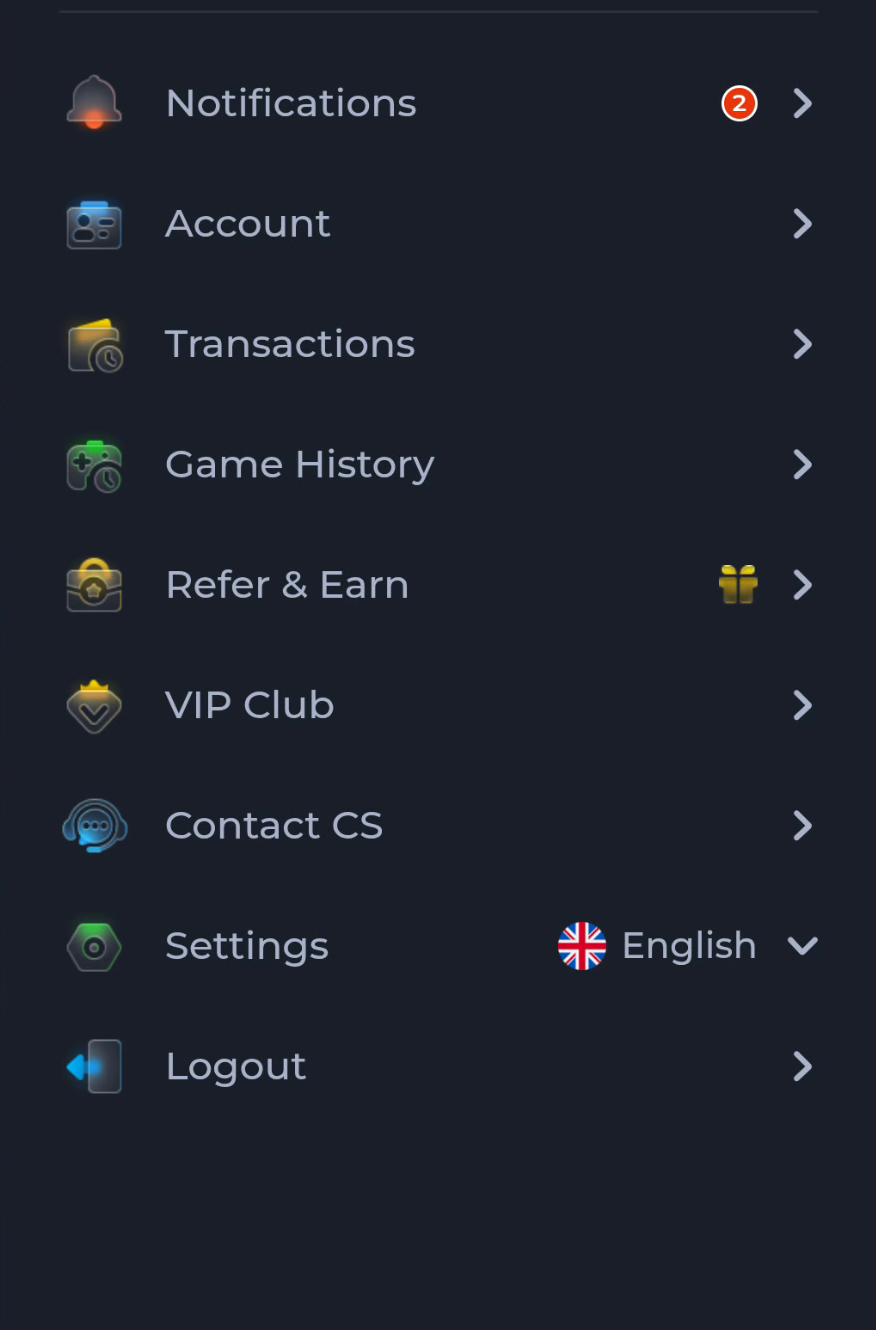
The account menu and Contact CS route are useful context while the working app remains accessible. Keep the record you need before making a change that could alter local sign-in state.
Recognise a protection stop
A harmful-app warning is not merely inconvenient timing. Follow Android or Play Protect guidance and stop the installation attempt. Postponing in this case means resolving the warning through a reliable route, not waiting and then bypassing it unchanged.
A general installation error is another reason to pause repeated attempts and collect information. Record the exact message, source and version rather than assuming all failures have the same cause.
Decide what would make you ready
Write a concrete condition: a stable transfer, enough storage, a clear source, understood release requirements or restored account access. Reassess once that condition is met. An indefinite feeling of uncertainty is less useful than a specific missing prerequisite.
When ready, return to the full Download sequence and verify each stage. The decision to update and the successful installation are separate outcomes.
Know when to stop
You are ready to resume when the specific prerequisite has been resolved and the source, device and account context are clear. Keeping a working app unchanged while doing that is a valid outcome.