 COME
COMECOME Version Number or Latest Version Status?
Use an actual version number to compare releases. The Latest Version wording beside Check Update in COME Settings is a status label, not a technical release number.
Read the menu action and its status
COME Settings shows Check Update beside Latest Version, with Language and sound controls in the same menu. Check Update is the action; the adjacent wording describes a status. Neither should be copied into a version field as though it were the release number.
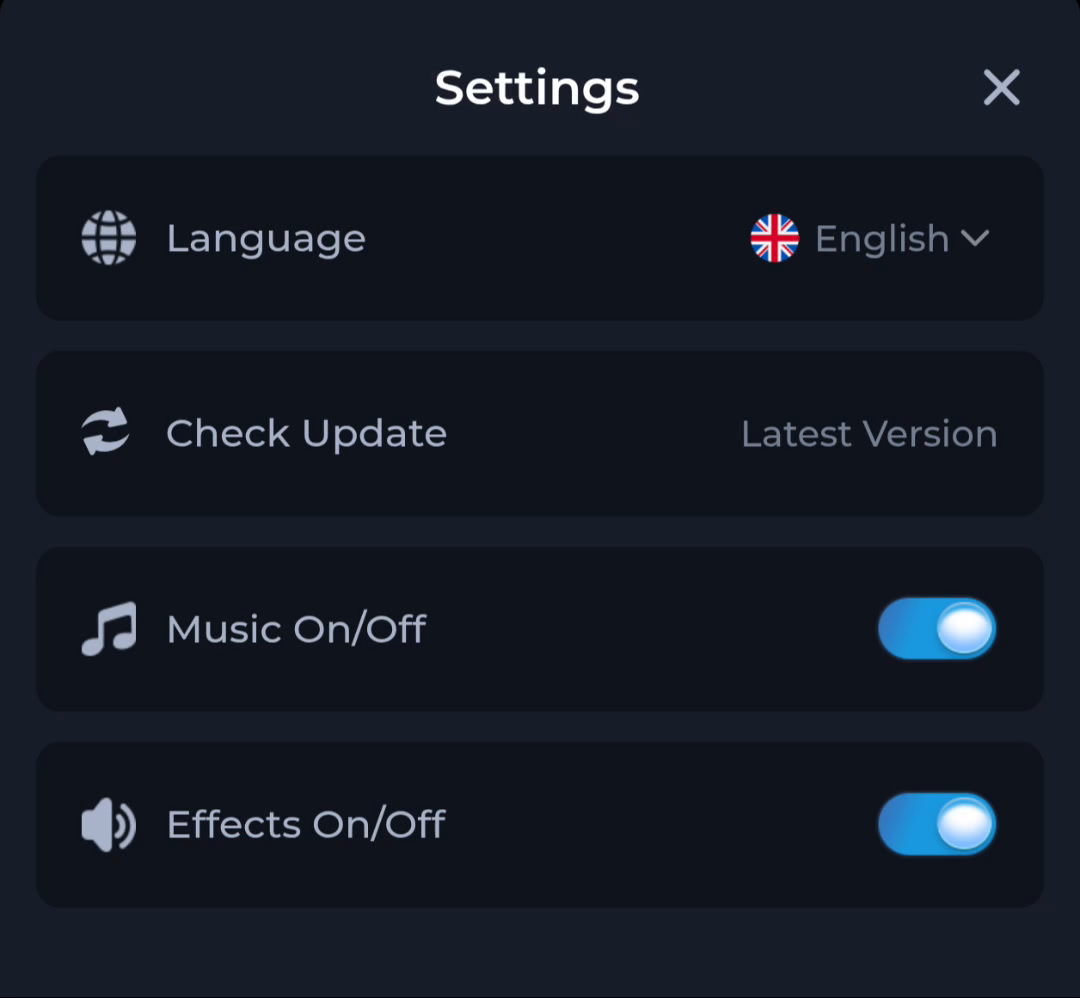
The screenshot helps you recognise the control, but your phone's current state belongs to the app you are running. Open the installed app and read the result there when investigating an update question.
Record the installed release
Use Android's app information to find the version of the installed COME app, where available. Device menu names vary, so look for the app's information rather than following another manufacturer's exact tap sequence. Note the version before attempting an update.
Keep the version with the device and date. If you use more than one phone, each installation can be different. A screenshot from another device is not a substitute for the information on the phone you intend to update.
Compare the offered release
The app listing checked on 20 September 2026 shows v1.12 and a 3.1MB size label. Read the actual offer when you open the current app entry. A listing check date is not a release date, and a saved filename does not settle whether the package is newer.
Compare versions only when the package belongs to the same intended application. A similarly named product or a game title containing Pro is not automatically another release of the COME app.
What a difference means
A different version is a reason to read the update information, requirements and source. It is not an instruction to uninstall immediately. Preserve the working app and account access while checking that the offered package fits the device and installation.
If Android rejects the update, retain the exact message. A version difference alone cannot diagnose compatibility, file damage or a signing mismatch. The device response and source information are needed to choose the next branch.
Example: three labels on one day
You see v1.12 in the app listing, a version number in Android App info and Latest Version in Settings. Record the first two as release information and the third as status wording. If the release numbers differ, investigate the offer; do not conclude that the status label overrides the actual numbers.
After a successful update, read the installed version again and test opening the app. That establishes what changed on this phone. A completed browser transfer alone cannot do that.
Know when to stop
You have completed the comparison when the installed version, offered version and update status are recorded separately. Continue only with a clear source and appropriate device requirements.
Related: COME Update Rejected by Android: Preserve the Working App