 COME
COMECOME Update Rejected by Android: Preserve the Working App
Keep a working COME installation while you investigate a rejected update. Record the exact Android message, confirm the completed file and check release requirements before changing app data.
Preserve the state that still works
If the existing COME app opens, note its version and confirm that you can return to the account. An unsuccessful update does not automatically require uninstalling that copy. Removing it can erase local context without proving the new package will install.
If the old app no longer opens, record that separately. The installed-app problem and the replacement-package error can be related, but they are not the same observation. Keep each message and stage clear.
Read the complete rejection
App not installed is a general outcome rather than a diagnosis. Other messages can be more specific about compatibility, storage, package conflicts or protection. Copy the wording exactly rather than translating every error into a presumed cause.
If Android or Play Protect identifies harmful behaviour, stop and follow the device's guidance. Do not disable protection or search for a mirror simply to avoid that warning.
Confirm the file and source
Check that the browser transfer completed and that the package came from the intended app route. Repeated downloads can create similar filenames; identify the correct source and offered version, not just the most recent-looking name.
Compare the release requirements with the phone. An older device can face requirements that a newer one does not. A file being small or having a familiar icon is not evidence that the release fits every Android phone.
Retry only after a relevant correction
If a transfer was incomplete, a completed transfer addresses that issue. If storage was insufficient, a deliberate capacity change can be relevant. If neither condition changed, repeatedly opening the same file is unlikely to provide new information.
Record the result after a supported retry. If the same error persists, stop and bring the source, version, device and message to the appropriate help route. Do not downgrade or erase data as a blind experiment.
Distinguish update checking from installation
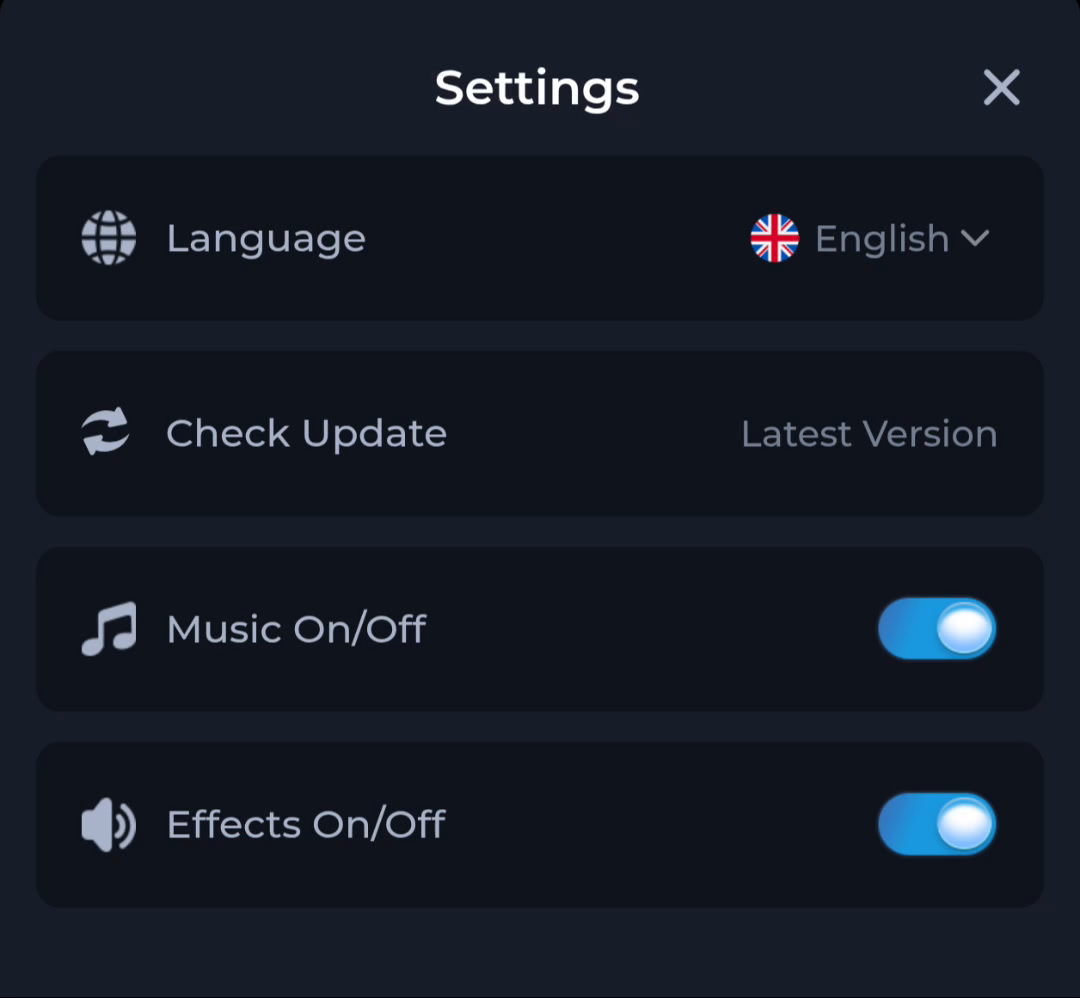
COME Settings includes Check Update, which helps you look for an offered release. Android's installer then decides whether a particular package can be installed on that device. Reaching the update menu is not proof the installation succeeded.
After Android reports a successful installation, read the installed version and open the app. Keep account recovery access until you have confirmed that the expected account can be reached.
Explain the failure precisely
A useful support note states the old version, the offered version, whether the file completed, the exact Android message and whether the previous app still works. It should not include a password, verification code or complete payment information.
Know when to stop
Stop repeating an unchanged failure. The next action should address the specific error while preserving the working app and account access; verify the installed version only after Android reports success.